Footer - Tshwane Interim
Adds the footer for the site
Content Type Details
- ID: 92
- Name: Footer - Tshwane Interim
- Minimum user level: Contributor
- Compatible with page layouts: N/A
Adds the footer that will be displayed in all page layouts.
This item should only be created in Site Assets >> Common Footer
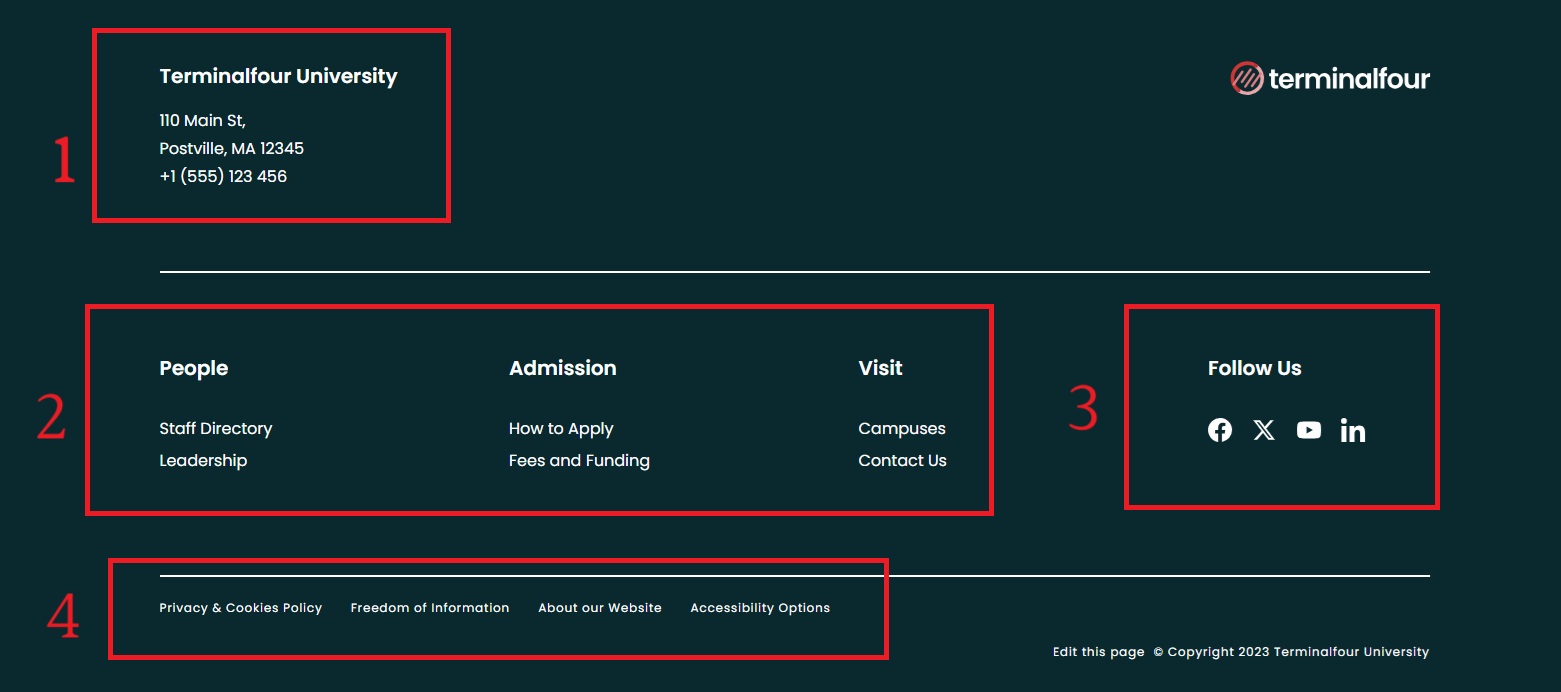
The footer allows:
- Address and phone number information;
- Up to 3 columns with a title and links inside it;
- 1 column for social media icons with the respective links;
- Additional links on the bottom row of the footer.
Required Elements
- Address - Enter the address of the university. This is an HTML element, so multiple lines and styles are allowed.
- Phone Number and Phone Number Text - The former is used for the actual link, so it should have no spaces, and the latter may have any format, and will be displayed on the page as the text of the link.
- Column (1-2) Title - Enter the text that will be the title for the respective column.
- Column (1-2) Links - Use the bullet point list option in the HTML editor to add multiple links to the respective column.
Optional Elements
- Column 3 Title - Enter the text that will be the title for the third column.
- Column 3 Links - Use the bullet point list option in the HTML editor to add multiple links to the third column.
- Facebook/Instagram/Twitter/YouTube/LinkedIn Links - Enter the relevant links. If any links are skipped, the respective icon won't appear.
- Footer Bottom Links - Use the bullet point list option in the HTML editor to add multiple links to the bottom row of the footer.
Content Type Elements Details
| Name | Description | Size | Type | Required | Conditionally Shown |
|---|---|---|---|---|---|
| Name | The Name Element | 80 Characters | Plain Text | Yes | No |
| Column 1 Title | Enter the title of the column | 50 Characters | Plain Text | Yes | No |
| Address | Enter the address of the university. See TinyMCE content options. | 250 Characters | HTML | No | No |
| Enter conact email address | 80 Characters | Plain Text | No | No | |
| Phone Number | Enter the phone number of the university, with no spaces | 15 Characters | Plain Text | Yes | No |
| Phone Number Text | Enter text for the phone number link | 20 Characters | Plain Text | Yes | No |
| Additional contact details | Enter other contact details. See TinyMCE content options. | 999 Characters | HTML | No | No |
| Column 1 Links | Enter the links for the column using bullets option in the editor. See TinyMCE content options. | 99999 Characters | HTML | No | No |
| Column 2 Title | Enter the title of the column | 50 Characters | Plain Text | Yes | No |
| Column 2 Links | Enter the links for the column using bullets option in the editor. See TinyMCE content options. | 99999 Characters | HTML | Yes | No |
| Column 3 Title | Enter the title of the column | 50 Characters | Plain Text | No | No |
| Column 3 Links | Enter the links for the column using bullets option in the editor. See TinyMCE content options. | 99999 Characters | HTML | No | No |
| Facebook Link | Enter Social Media Link | 100 Characters | Plain Text | No | No |
| Instagram Link | Enter Social Media Link | 100 Characters | Plain Text | No | No |
| Twitter Link | Enter Social Media Link | 100 Characters | Plain Text | No | No |
| YouTube Link | Enter Social Media Link | 100 Characters | Plain Text | No | No |
| LinkedIn Link | Enter Social Media Link | 100 Characters | Plain Text | No | No |
| TikTok Link | Enter Social Media Link | 100 Characters | Plain Text | No | No |
| Footer Bottom Links | Enter the links for the column using bullets option in the editor. See TinyMCE content options. | 99999 Characters | HTML | No | No |
Example
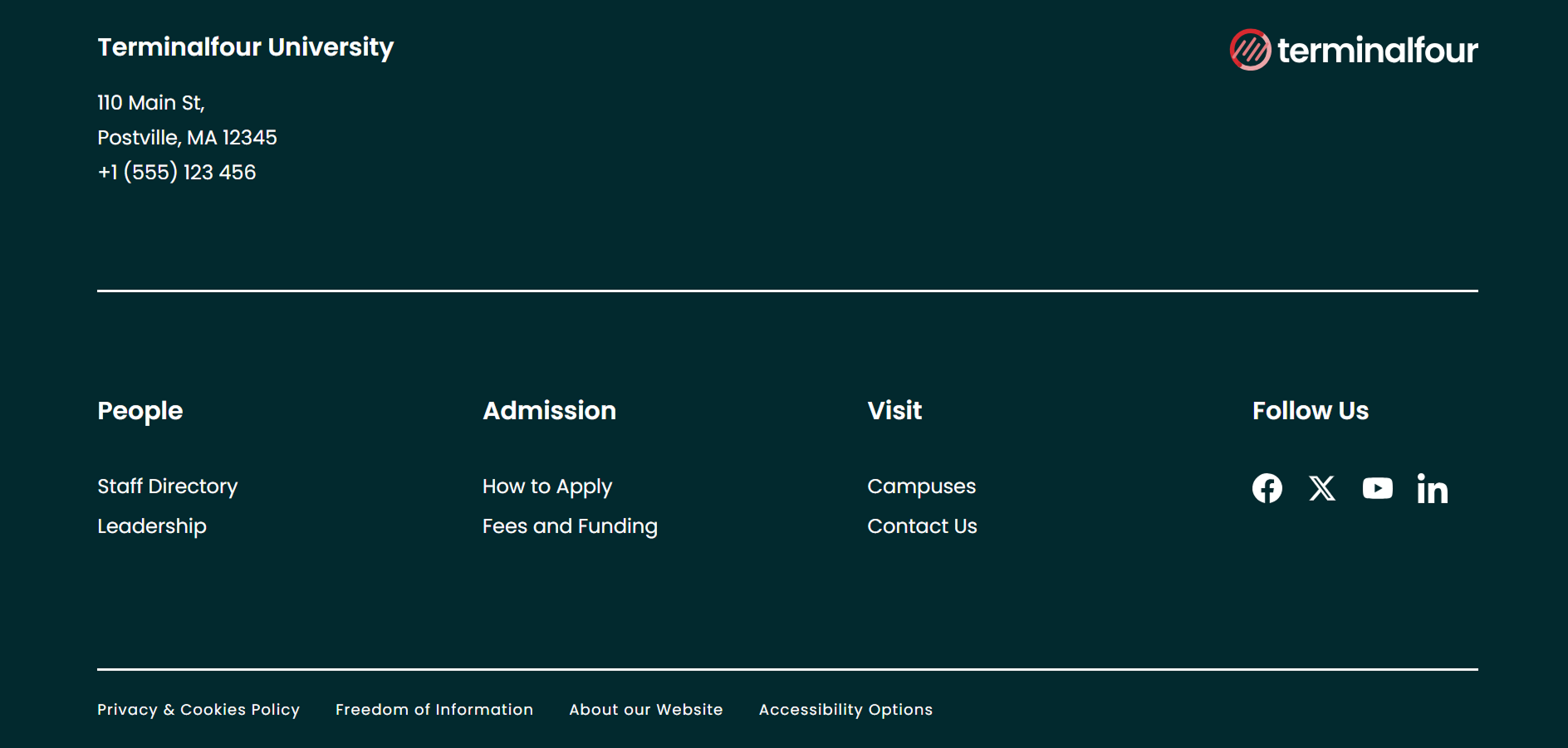
The full header is visible at the bottom of the page.